Gordon
Gordon es un asistente impulsado por IA que actúa en tus flujos de trabajo de Docker. Analiza tu entorno, propone soluciones y ejecuta comandos con tu permiso.
Qué hace Gordon
Gordon toma medidas para ayudarte con las tareas de Docker:
- Explica conceptos y comandos de Docker
- Busca soluciones en la documentación de Docker y recursos web
- Escribe y modifica Dockerfiles siguiendo las mejores prácticas
- Depura fallas en los contenedores leyendo registros y proponiendo correcciones
- Gestiona contenedores, imágenes, volúmenes y redes
Gordon propone cada acción antes de ejecutarla. Tú apruebas lo que hace.
Dónde usar a Gordon
Gordon está disponible en cuatro superficies:
- Abre la vista de Gordon desde la barra lateral de Docker Desktop para ejecutar comandos de Docker con tu aprobación. Consulta Usar Gordon en Docker Desktop.
- Ejecuta
docker aien la terminal para usar el asistente completo desde la línea de comandos. Consulta Usar Gordon a través de la CLI. - Selecciona el icono de Gordon en cualquier página de repositorio en hub.docker.com para preguntar sobre las imágenes, etiquetas y metadatos de un repositorio. Transfiérelo a Docker Desktop para que actúe.
- Selecciona el icono de Gordon en cualquier página de docs-docker.esdocu.com para hacer preguntas sobre Docker.
Docker Desktop y la CLI cuentan para los límites de uso de tu plan de Gordon. Gordon en Docker Hub y docs-docker.esdocu.com es gratuito y no requiere una cuenta de Docker ni tener instalado Docker Desktop. Tiene su propio límite de uso público compartido y no accede a tu entorno de Docker.
Primeros pasos
Requisitos previos
Antes de comenzar:
- Docker Desktop 4.74 o posterior
- Inicia sesión en tu cuenta de Docker
NoteGordon está habilitado por defecto para los usuarios de Docker que han iniciado sesión. Si tu cuenta pertenece a una organización con una suscripción Business, el acceso requiere dos pasos adicionales:
- Ponte en contacto con el Soporte de Docker para activar a Gordon para tu organización. Docker te confirmará cuando la activación se haya completado.
- Una vez confirmada, un administrador de la organización debe establecer Enable Gordon (Habilitar Gordon) en Enabled (Habilitado) o Always enabled (Siempre habilitado) en la Consola de Administración. No dejes el ajuste en su valor por defecto, ya que esto no activará a Gordon en toda la organización.
Inicio rápido
Abre Docker Desktop.
Selecciona Gordon en la barra lateral.
Selecciona el directorio de tu proyecto.
Escribe una pregunta: "¿Qué contenedores se están ejecutando?"
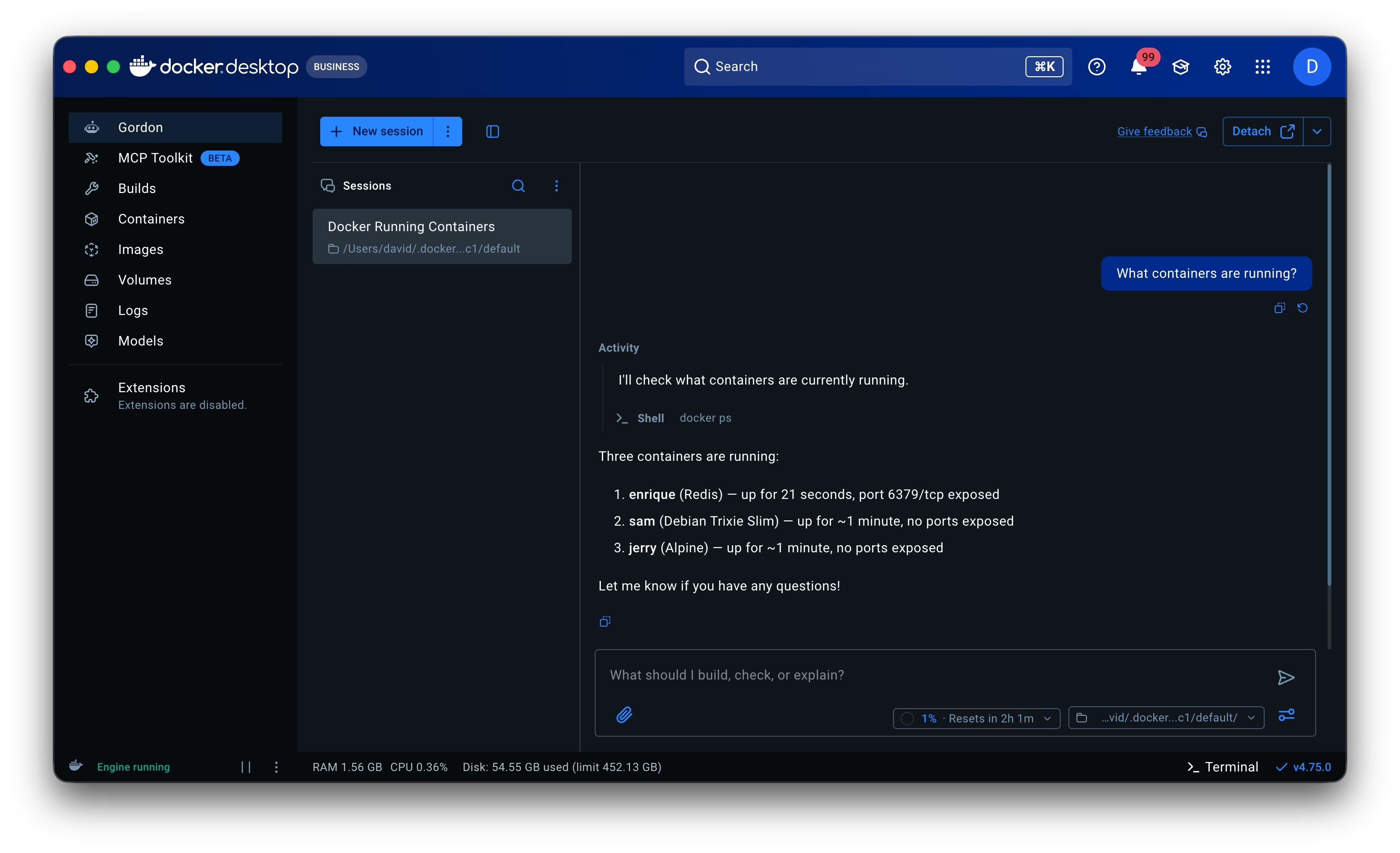
Revisa las acciones propuestas por Gordon y apruébalas.
Abre tu terminal y ejecuta:
$ docker aiEsto abre la interfaz de usuario de terminal (TUI) para Gordon.
Escribe una pregunta: "¿qué contenedores se están ejecutando?" y presiona Enter.
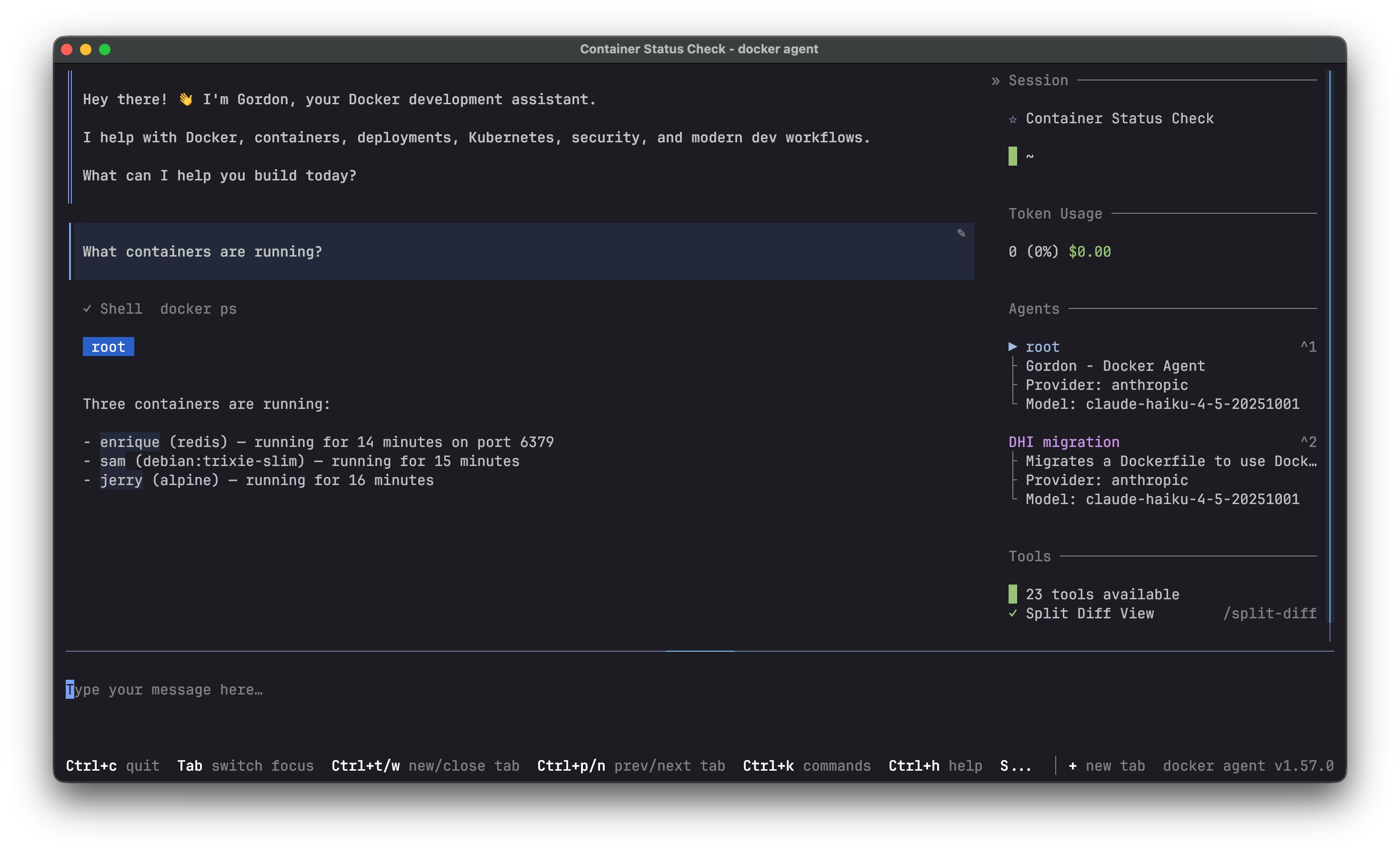
Revisa las acciones propuestas por Gordon y apruébalas escribiendo
y.
Permisos
Por defecto, Gordon solicita aprobación antes de ejecutar acciones. Puedes aprobar acciones individuales o permitir todas las acciones para la sesión actual.
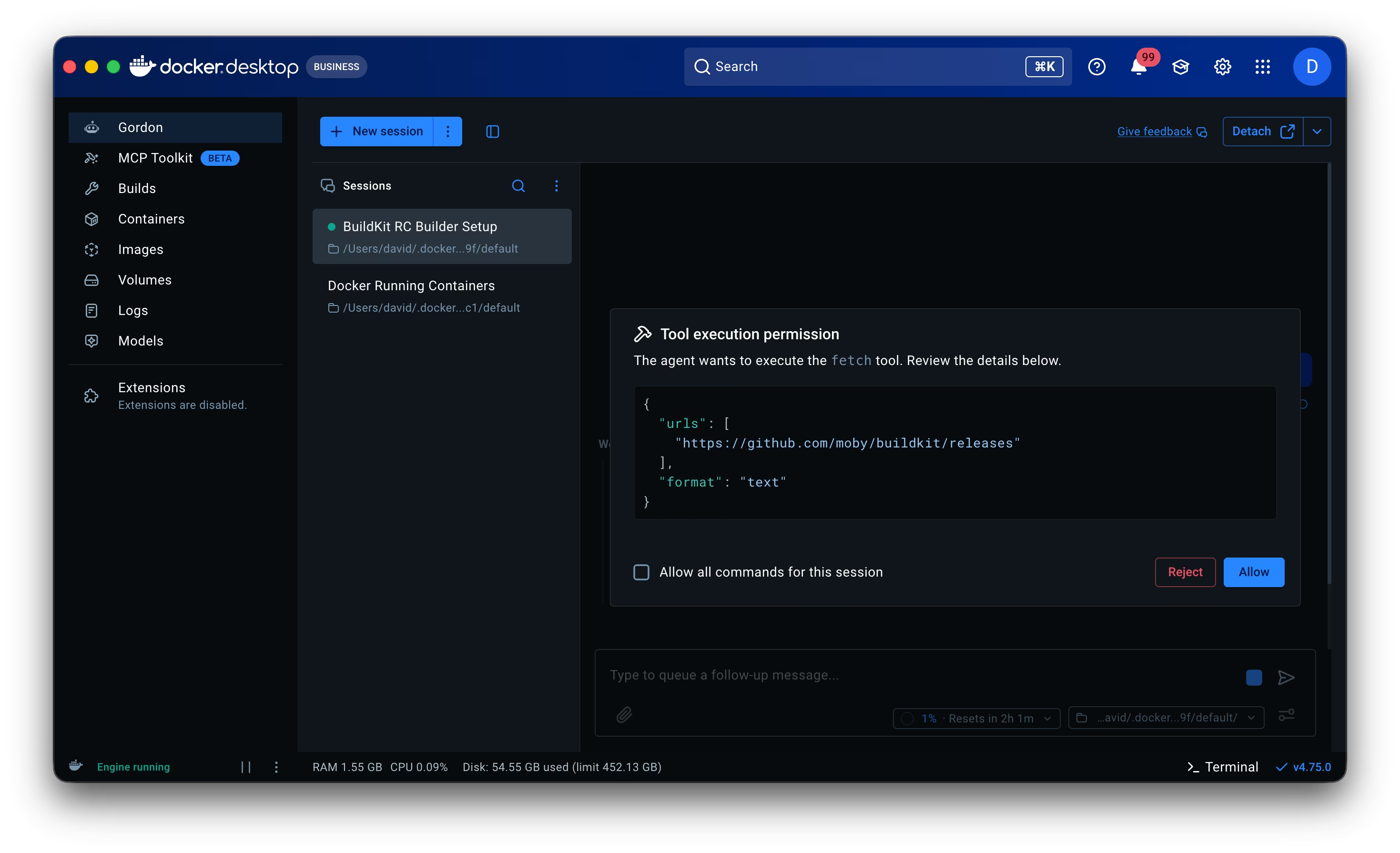
Los permisos se restablecen para cada sesión. Para configurar los permisos por defecto o habilitar el modo de aprobación automática, consulta Permisos.
Prueba estos ejemplos
Inspección de contenedores:
$ docker ai "show me logs from my nginx container"
Revisión de Dockerfile:
$ docker ai "review my Dockerfile for best practices"
Gestión de imágenes:
$ docker ai "list my local images and their sizes"